Start Using Chroma
Installation & Configuration
Install or update Chroma, understand the main controls, import settings, and troubleshoot common setup issues.
Download ChromaThis guide covers installing Chroma, enabling required browser features, troubleshooting common issues, and understanding the main settings.
Quick Start
- Open GitHub Releases and download the release asset named
chroma-ad-blocker-vX.Y.Z.zip. The Source code archives are repository snapshots, not the packaged extension. Extract the release ZIP to a folder you will keep; Chrome loads Chroma from that folder. - Open
chrome://extensionsin Chrome oredge://extensionsin Microsoft Edge. - Toggle on Developer Mode in the top-right corner.
- Click Load unpacked and select the extracted folder that contains
manifest.json. - Enable User Scripts support:
- Chrome 138+: On the Chroma extension card, click Details, then enable Allow User Scripts.
- Chrome 122-137: The Developer Mode toggle from step 3 enables the
userScriptsAPI.
- Chroma's network rules begin applying immediately to eligible requests. Reload tabs that were already open so page-side features such as cosmetic filtering, scriptlets, and platform handlers can initialize. Chrome-internal and other browser-restricted pages cannot run those page-side features. Pin Chroma from the extensions menu to access the popup.
Next, follow Everyday Use & Troubleshooting to open Settings, pause protection for a site, hide an element, or recover a broken page.
Updating Chroma
Chroma is installed unpacked, so updates are handled through the same local folder Chrome already loads. Keeping that folder path the same helps preserve the extension ID, settings, and local statistics.
Normal popup and settings loads use a cached GitHub release check for up to 6 hours. The Check Latest Release button forces a fresh check when you want to look for a newly published release immediately.
When Chroma detects a newer release, the popup shows an update banner. Click it to open Settings -> Updates. If guided installation is available:
- Click Check Latest Release.
- Click Choose Chroma Folder and select the folder you originally loaded into Chrome, containing
manifest.json. Select the installed folder, not a backup or a new download. - Approve the browser's folder-access prompt.
- Click Inspect Package ZIP. Chroma downloads and verifies the signed release package automatically.
- Click Build Install Plan and review the files to be changed.
- Click Run Write Probe to confirm Chroma can write to the folder.
- Install the update. Chroma backs up affected files and attempts to restore them if installation fails.
- Click Reload Chroma to load the updated files. If direct reload is unavailable, Chroma opens
chrome://extensionsas a fallback.
If the panel shows Chroma Is Current, no update is needed.
If the popup links to an update on GitHub without offering guided install, use the manual update steps below for a trusted GitHub release.
Do not use the manual flow to bypass a failed signature, hash, package, or manifest verification. A verification failure means Chroma could not authenticate that release package; stop and wait for a corrected release.
Manual Update Fallback
Manual updates do not receive the guided updater's signature verification. Download the package from Chroma's GitHub releases.
- Download the latest
chroma-ad-blocker-vX.Y.Z.zipfrom GitHub Releases. - Extract it to a temporary folder.
- Back up your current unpacked Chroma folder.
- Copy the extracted package contents over the current Chroma folder, keeping
manifest.jsonat the folder root. - Open
chrome://extensionsand click Chroma's refresh button.
If the guided updater asks for folder access again after a browser restart, select the same installed Chroma folder and rerun the write probe.
Settings Navigation And Controls
Open the Chroma popup and click the Open Settings gear beside Protection Events. Settings navigation links jump to Protection, Filter lists, Proxy, Health, Statistics, Updates, Scriptlets, Zapper, Request log, and Backup. Within Protection, controls are grouped under Ad blocking, YouTube, Spotify, Privacy, Advanced, and Appearance.
The master switch shows whether protection is on or off. Wait for a pending save to finish before making another change; a failed save displays an error. Enable both master protection and YouTube ad acceleration to choose an acceleration speed.
Under Appearance, Reduce motion turns off animated borders, moving backgrounds, and smooth scrolling. The preference persists locally, and the system's reduced-motion preference is respected even when the toggle is off. This UI preference is separate from protection and is not included in settings backups.
Use Tab to move between controls and navigation links. Focus indicators show the selected control, and the request log can be expanded with Enter or Space.
For popup controls and site exceptions, see Everyday Use. Settings backup instructions are below.
Configuration
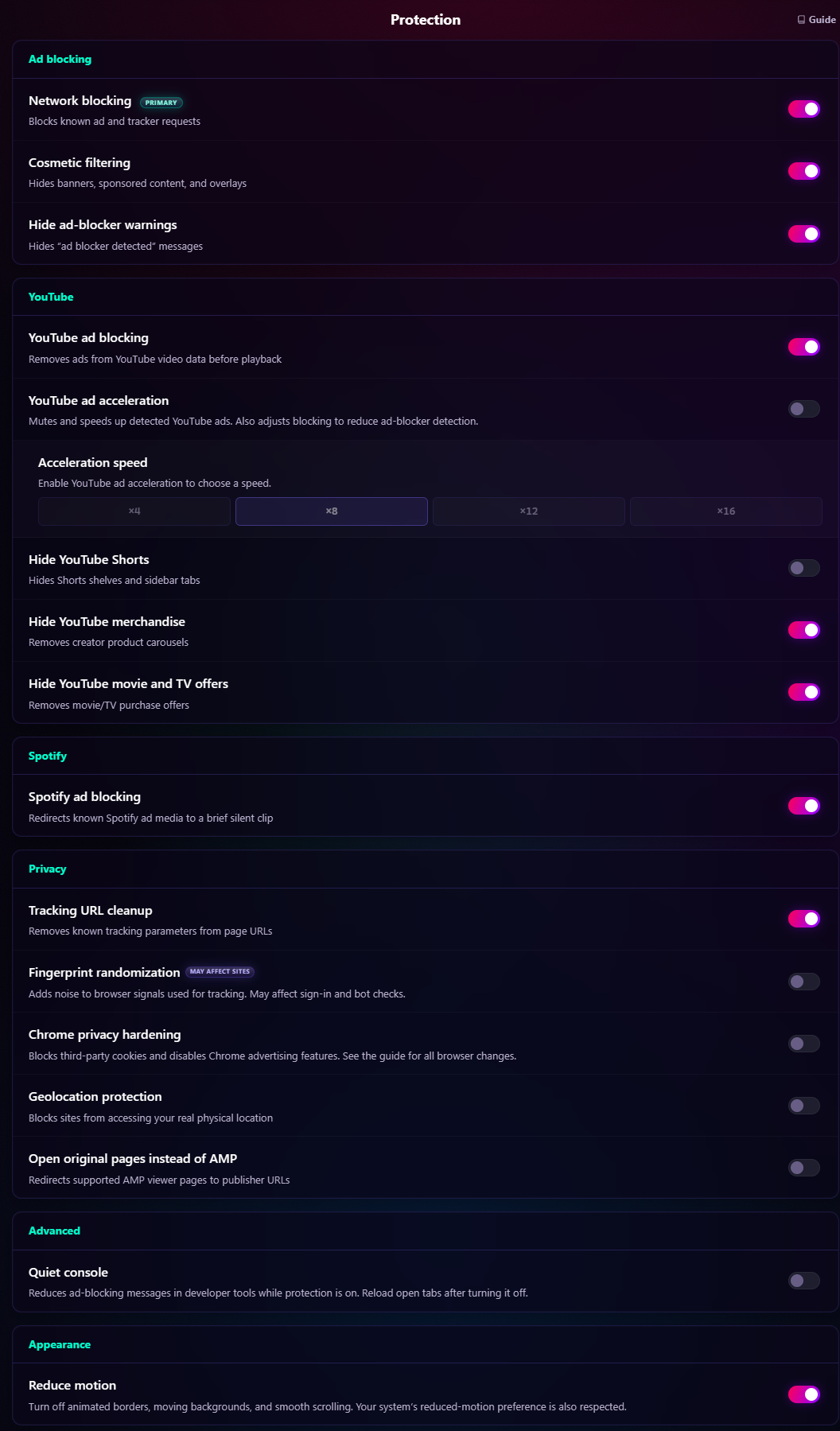
Locations below are within Settings unless marked Popup. The stored keys are included for readers inspecting backups or source code; use the named controls to change settings.
| Control / stored key | Location | What it does | Fresh-install default |
|---|---|---|---|
Master protection (enabled) |
Header in popup or Settings | Pauses active protection while preserving requested settings and caches. See Pause all protection. | On |
Network blocking (networkBlocking) |
Protection -> Ad blocking | Enables general DNR network blocking. Spotify retains its separate toggle. | On |
Cosmetic filtering (cosmetic) |
Protection -> Ad blocking | Hides banners, placeholders, and saved Zapper selectors through CSS. | On |
Hide ad-blocker warnings (suppressWarnings) |
Protection -> Ad blocking | Suppresses supported anti-adblock messages and overlays. | On |
YouTube ad blocking (stripping) |
Protection -> YouTube | Removes ad-related data before YouTube playback. | On |
YouTube ad acceleration (acceleration) |
Protection -> YouTube | Mutes and speeds up detected YouTube ads and adjusts blocking for compatibility. | Off |
Acceleration speed (accelerationSpeed) |
Protection -> YouTube | Selects x4, x8, x12, or x16 while master protection and acceleration are on. | x8 |
Hide YouTube Shorts (hideShorts) |
Protection -> YouTube | Hides Shorts shelves and sidebar tabs when cosmetic filtering is on. | Off |
Hide YouTube merchandise (hideMerch) |
Protection -> YouTube | Removes creator product panels when cosmetic filtering is on. | On |
Hide YouTube movie and TV offers (hideOffers) |
Protection -> YouTube | Removes purchase-offer modules when cosmetic filtering is on. | On |
Spotify ad blocking (spotifyAdBlocking) |
Protection -> Spotify | Redirects known ad media to a silent clip. Independent of YouTube and Network blocking; respects master protection and site exceptions. | On |
Tracking URL cleanup (trackingUrlCleanup) |
Protection -> Privacy | Removes known tracking parameters from top-level navigation URLs. | On |
Open original pages instead of AMP (deAmpLinks) |
Protection -> Privacy | Redirects supported AMP viewer pages to publisher URLs. | Off |
Fingerprint randomization (fingerprintRandomization) |
Protection -> Privacy | Farbles canvas, audio, WebGL, navigator, and language signals per document, with full-hostname separation. | Off |
Chrome privacy hardening (browserPrivacyHardening) |
Protection -> Privacy | Requests third-party-cookie blocking, disabled Do Not Track, and disabled supported Privacy Sandbox ad APIs. | Off |
Geolocation protection (geolocationProtection) |
Protection -> Privacy | Requests blocking through Chrome's location setting. Health reports a sampled effective result. | Off |
Quiet console (quietConsole) |
Protection -> Advanced | Reduces handled warnings and known ad/tracker request noise while master protection is on. Existing page helpers may require a reload after disabling. | Off |
| Reduce motion | Protection -> Appearance | Reduces UI animation; also honors the system preference. Separate from protection and settings backups. | Off |
Whitelist this site (whitelist) |
Popup -> This Site | Saves a site exception; see scope and reload behavior. | Empty list |
Disable FPR on this site (fprWhitelist) |
Popup -> This Site, when FPR and master protection are on | Exempts a site only from fingerprint randomization. | Empty list |
Saved selectors (localCosmeticRules) |
Zapper | Enables, pauses, or deletes saved Element Zapper rules. | Empty list |
Global fallback (globalProxyEnabled, globalProxyId) |
Proxy -> accepted proxy card | Selects a proxy for traffic without a domain-specific route while master protection is on. | Off; no selection |
Bypass Chrome browser services (chromeServiceProxyBypass) |
Proxy | Direct-connects a fixed Google/Chrome-related hostname list, including page traffic. Takes precedence over domain and global routes whenever routing is active. | On |
WebRTC Leak Protection (webRtcLeakProtection) |
Proxy | Requests Chrome's WebRTC handling policy: Off, Auto, Balanced, or Strict. | Auto |
Master off pauses active protection but does not rewrite the requested values in this table. Re-enable, startup, and worker recovery reconcile the latest stored requests back into DNR, userScripts, proxy, WebRTC, browser-privacy, and geolocation runtime state.
Defaults describe a fresh install. An older configuration with no saved Spotify preference keeps Spotify protection off until enabled. See YouTube, Spotify, and the Media Proxy Router for feature-specific limits.
Settings Backup And Import
Open Settings -> Backup -> Backup and restore to export or import a settings file. The section displays export, import, and validation feedback. The local Reduce motion preference is not included in this backup.
Click Export settings to save a versioned chroma-settings JSON backup. To restore it, click Import settings and select that file. The backup contains validated configuration, both site and FPR-only whitelists, proxy definitions without credentials, custom-subscription definitions without cached list data, and Advanced User Scriptlet URLs/rules without cached executable code.
This is a settings backup, not a complete copy of extension storage. It omits saved Zapper rules, statistics, the request log, bundled-list enable/disable preferences, and Reduce motion. Statistics have a separate export; there is no statistics import. Keep a separate record of any Zapper selectors or bundled-list choices you need when moving to a fresh installation.
Chroma validates the backup before applying it. Invalid or unsupported backups leave your settings unchanged. If applying a valid backup fails, Chroma attempts to restore your previous settings and reports any incomplete restoration.
After importing, re-enter required HTTP/HTTPS proxy credentials in Settings -> Proxy and test the affected proxies. Refresh imported custom filter lists and Advanced User Scriptlet resources because the backup omits their cached content, then reload affected tabs. Recheck bundled-list choices when restoring to a fresh installation. See Filter List Subscriptions, Advanced User Scriptlets, and the proxy setup flow.
Troubleshooting Quick Reference
For a broken page, sign-in problem, or accidentally hidden element, start with Everyday Use & Troubleshooting. The table below covers setup, updates, and diagnostics.
| Symptom | Check |
|---|---|
| Subscription or custom user scriptlets show unavailable in Health. | On Chrome 138+, open chrome://extensions, select Chroma Details, and enable Allow User Scripts. On Chrome 122-137, confirm Developer Mode is enabled. Reload affected tabs after enabling access. |
| Fingerprint randomization is not active. | Check master protection, Fingerprint randomization, and both site-exception switches, then reload the page. FPR uses Chrome's content-script registration API separately from User Scripts access. If Health reports a registration problem, inspect its diagnostic message and confirm browser support. |
| Quiet Console is off but an already-open tab still behaves differently. | Reload that tab. Turning Quiet Console off unregisters the page helper for new documents, but Chrome cannot remove page-context code that already ran in an existing document. |
| Quiet Console is on but DevTools still shows blocked resource rows. | Chrome can still log browser-generated failures for blocked subresources. Quiet Console only handles known scriptlet/fingerprint warnings and known ad/tracker fetch, XMLHttpRequest, and sendBeacon paths. |
| Guided updater is unavailable. | Use a Chromium browser that supports folder selection, or follow Manual Update Fallback for a trusted GitHub release. Do not use manual installation to bypass a failed package verification. |
Guided updater reports a missing release ZIP or updates.json. |
The GitHub release must include the exact direct asset name chroma-ad-blocker-vX.Y.Z.zip and signed updates.json. Wait for corrected assets, or use the manual fallback only after independently confirming that you trust the release. |
| Guided updater reports an invalid update signature. | Stop and do not install that release, including through the manual fallback. The updates.json file was not signed with Chroma's bundled update key or changed after signing; wait for a corrected authenticated release. |
| Guided updater says Chroma is current. | No newer release is available for this install. Use Check Latest Release to force a fresh GitHub release check if a new release was just published. |
| Guided install completes but the old version still runs. | Click Reload Chroma in the updater panel. If direct reload is unavailable, open chrome://extensions and click Chroma's refresh button. |
| Authenticated SOCKS proxy credentials do not work. | Chromium extension proxy APIs do not expose SOCKS username/password auth to extensions. Use provider-side IP allowlisting or an HTTP/HTTPS proxy endpoint. |
| Proxy or privacy Health status says Controlled elsewhere. | Another extension or browser policy owns that Chrome setting. Chroma keeps requested intent, reports it as ineffective/degraded, and automatically retries when control is released. |
| Subscription refresh fails. | Confirm the list URL is HTTPS, reachable, not credential-bearing, under the response-size limit, and returns filter-list text rather than an HTML error page. Chroma blocks literal private/special-use addresses but cannot validate DNS-resolved peer IPs; add only trusted sources. |
| A site fix requires extension changes. | Chroma checks GitHub releases and notifies you when an update is available. Prefer the guided updater. Use a reviewed package manually only when guided assets are unavailable, never to bypass a failed verification. |
| Request Log is empty. | Chroma is installed unpacked, so DNR match logging should normally be available when Chrome exposes chrome.declarativeNetRequest.onRuleMatchedDebug. If the browser does not expose that feedback API, blocking can still work normally. |
Health Panel
Open Settings -> Health after installation or when a feature is unavailable. Review each layer's status and expand Diagnostic details for more information. See Health Panel for status meanings, browser-control limits, and the difference between blocking and request-log availability.
Why Not The Chrome Web Store?
Chroma publishes inspectable release packages through GitHub and provides its own guided updater. Releases do not go through Chrome Web Store review, but all Chrome API permissions, Manifest V3 quotas, and browser policies still apply. The repository's Distribution guide explains the release model and verification process.
Uninstalling And Local Data
- Export any settings or statistics you want to keep. Review the backup omissions above before relying on a settings file for reinstallation.
- Open
chrome://extensionsoredge://extensions, find Chroma, and click Remove. Confirm the browser's removal prompt. - Reload pages that were already open to remove effects from page scripts that ran before removal.
Removing an extension clears its chrome.storage.local data, including Chroma's settings, cached lists, saved Zapper rules, proxy credentials, statistics, and request log. Turning protection off or disabling the extension preserves those saved values. Clearing browser history alone does not clear extension storage. See Chrome's storage documentation.
Removing Chroma does not delete the unpacked folder, downloaded release ZIPs, exported JSON files, or folder backups on your computer. Delete those separately if you no longer need them. To erase only activity while keeping Chroma installed, use statistics and request-log reset controls.